
Short answer: In Jira, open your Scrum backlog, create or select a sprint, drag ready issues into it until scope matches team capacity, estimate with story points, then start the sprint. ScrumNav adds a live capacity bar, completion %, and Scrum Poker in the same planning screen.
What is Jira sprint planning?
Sprint planning is a Scrum event where the team agrees what product backlog items they will work on in the upcoming sprint and how they will deliver them. In Jira Software Cloud, that work happens on the Scrum board backlog: you scope the sprint, estimate issues, and start the sprint when the team commits.
Effective planning usually splits into two parts — the same structure described in the Scrum Guide:
- Scope (what). Agree a sprint goal, confirm who is available, and select backlog items the team forecasts it can finish.
- Plan (how). Break down work if needed, clarify dependencies, and confirm estimates so everyone shares the same picture of the sprint.
Jira makes scoping easy — drag issues into a sprint — but it does not, by default, show whether planned story points exceed what the team can deliver. That gap is where capacity planning and tools like ScrumNav matter.
How to run sprint planning in Jira
Whether you use native Jira or an add-on, the core sprint planning workflow in Jira is the same:
- Refine the backlog first. Planning goes faster when items meet your definition of ready — clear acceptance criteria and story-point estimates where possible.
- Set a sprint goal. Use it as a filter: which backlog items support this goal?
- Check team availability. Account for holidays, part-time members, and planned support or on-call work before you commit to scope. In ScrumNav: review team days and shared time off in the capacity bar before you pull scope.
- Pull work into the sprint. Drag issues from the backlog until planned load matches capacity — not until the backlog is empty. In ScrumNav: backlog and sprint issues sit side by side; the capacity bar updates as you drag.
- Estimate remaining items. Add or update story points on anything still unestimated. In ScrumNav: edit points inline or open Scrum Poker without leaving the planning view.
- Confirm and start. When the team agrees on scope, click Start sprint on the backlog.
For a deeper look at realistic commitments, buffer, and carry-over, see how to plan a realistic sprint in Jira and velocity vs capacity in Jira sprints.
Story points and capacity in Jira
Story points express relative effort — not hours. During sprint planning, the team uses them to compare backlog items and sum planned load for the sprint.
Capacity is different from velocity: capacity is what the team can take on this sprint given available working days; velocity is what the team finished in past sprints. Use capacity to set commitment; use velocity from sprint reports to calibrate it over time.
- Estimate before you pull. Unpointed items make it easy to over-fill the sprint.
- Plan to less than 100%. Many teams target 85–95% of capacity so bugs, support, and meetings do not blow up the sprint.
- Count carry-over honestly. Work that is 80% done should not consume full story points in the remaining load bar.
Native Jira does not show a live capacity bar during planning. That gap is what ScrumNav sprint planning is built for — see the next section.
Plan sprints in Jira with ScrumNav
Classic Jira sprint planning often means jumping between the backlog, issue detail, capacity spreadsheets, and a separate estimation tool. It is easy to over-commit or lose track of what still fits.
ScrumNav combines scope, estimates, and capacity in one planning screen so the team can make decisions with the same context on screen.
- Select a Jira Software board and sprint (active, future, or automatic)
- View sprint issues (excluding Done) and board backlog side by side
- Drag and drop issues between sprint and backlog; reorder within lists
- Edit story points inline — saved to your configured Jira field
- Adjust per-issue completion % with a slider or manual override
- Open Scrum Poker for any issue in the list
- See a live capacity bar at the top with OK, over, or under status as you plan
- Review team days, exceptions, planned load, and remaining points without leaving the view
- See recommended capacity from recent closed sprints — uses the same previous sprints (count) set in capacity settings
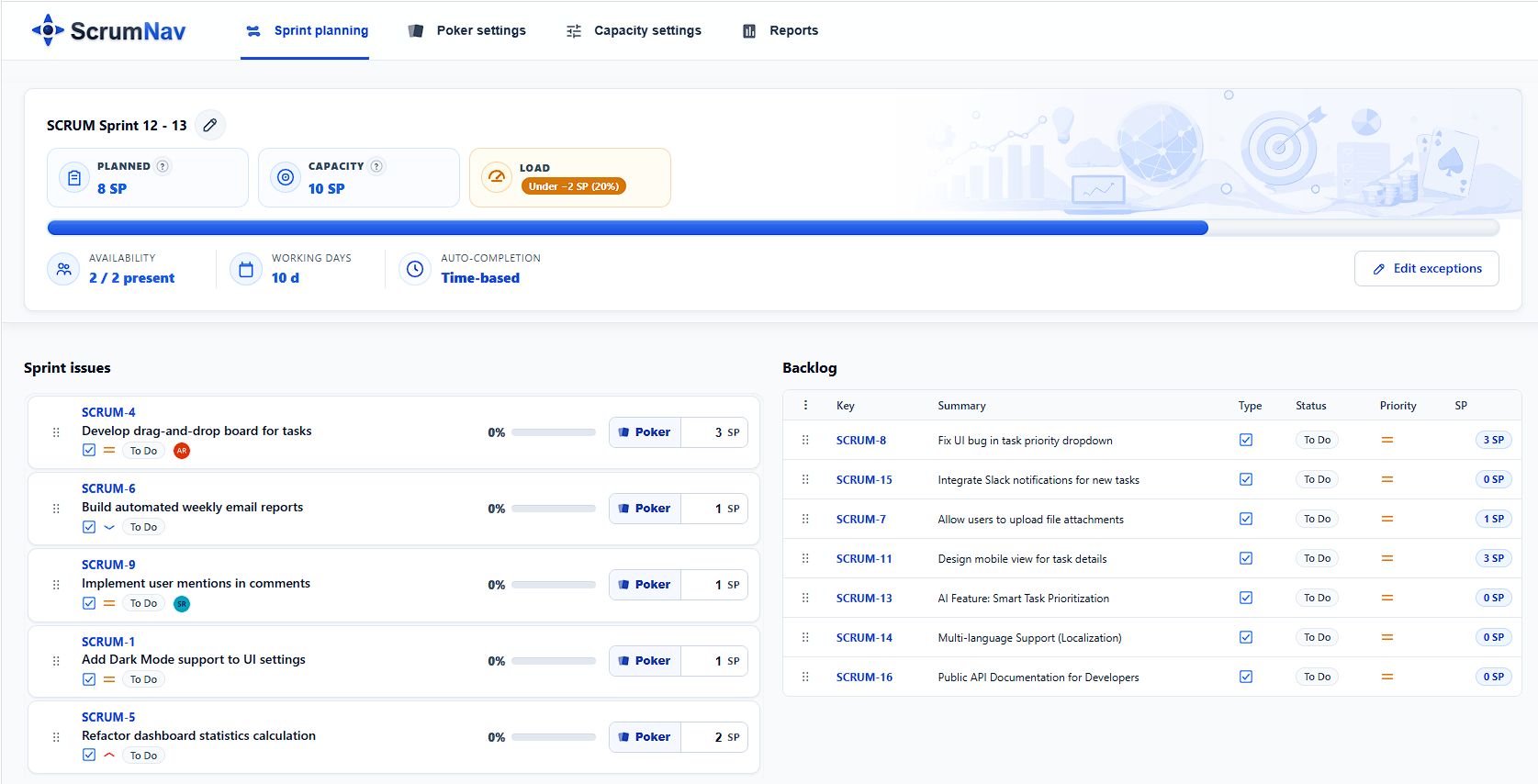
Step-by-step in ScrumNav
- Open ScrumNav from Jira apps and go to the sprint planning view.
- Select your board and the sprint you are planning (or let ScrumNav pick the active sprint).
- Review capacity at the top — confirm team days and shared time off if needed. See the capacity guide for details.
- Drag issues from the backlog into the sprint until load matches what the team can deliver.
- Estimate unpointed work — edit story points inline or open Scrum Poker for consensus estimates.
- Adjust completion % on in-progress items if carry-over work should count as partially complete.
- Watch the capacity indicator — stop adding scope when the sprint moves from under to OK, or discuss trade-offs if it shows over.
How to create a sprint in Jira
On a Scrum board, open Backlog, click Create sprint, name it, drag issues from the backlog, then Start sprint when scope is ready. You need Manage sprints permission. Each issue belongs to one sprint at a time.
How to complete a sprint in Jira
When the sprint ends, open Active sprints, click Complete sprint, and move incomplete issues to the backlog or a future sprint. Review and retrospective feed the next sprint report and planning round.
Sprint planning tips
- Use completion % for carry-over. A nearly done ticket should not consume full story points in the remaining load bar.
- Re-rank as you plan. Drag issues within the sprint to reflect delivery order.
- Check reports after the sprint. Closed-sprint history helps the next planning session — see the sprint reports guide.
Related reading
Articles
- How to plan a realistic sprint in Jira — capacity, buffer, carry-over, and forecast error
- Velocity vs capacity in Jira sprints — when to use each metric during planning
Guides
- Sprint capacity in Jira Cloud — team days, efficiency, and holidays
- Scrum Poker in Jira — consensus estimates without leaving the board
- Sprint reports in Jira — velocity and closed-sprint history for the next plan
Frequently asked questions
- How do you run sprint planning in Jira?
- Open your Scrum project backlog, agree on a sprint goal, review team availability, drag ready backlog issues into the sprint until scope matches capacity, estimate unpointed work with story points, then start the sprint from the backlog when the team commits.
- How do you create a sprint in Jira?
- In Jira Software Cloud, go to Backlog on a Scrum board, click Create sprint, name the sprint, set dates or duration and an optional sprint goal, then drag issues from the backlog into the sprint before clicking Start sprint.
- How do you add issues to a sprint in Jira?
- From the backlog, drag and drop issues into the sprint panel, or edit the Sprint field on an issue. An issue can only belong to one sprint at a time. Reorder issues inside the sprint to reflect delivery priority.
- How do you avoid over-committing during sprint planning?
- Compare planned story points to team capacity for this sprint — working days minus holidays and absences — not to a wish list. Estimate before you pull work in, leave a small buffer for unexpected work, and treat carry-over items as partially complete rather than full points again. See how to plan a realistic sprint in Jira.
- How do you complete a sprint in Jira?
- Open Active sprints on your Scrum board, select the sprint, and click Complete sprint. Jira moves incomplete issues to the backlog or a future sprint you choose. Run a sprint review and retrospective before planning the next sprint.
- Can I move issues between sprint and backlog in ScrumNav?
- Yes. Sprint planning supports drag and drop between the sprint list and board backlog, including rank changes within each list.
- Do story point edits save to Jira?
- Yes. When you edit story points in the planning list, ScrumNav saves the value to the configured Jira story point field.
- Which boards and sprints does ScrumNav support?
- ScrumNav works with Jira Software boards you have access to. You can pick active or future sprints, or use automatic sprint selection depending on your workflow.
- Can I estimate issues without leaving sprint planning?
- Yes. Open Scrum Poker from an issue in the planning view, run a round, and apply the agreed story points back to Jira without switching tools.
- What does the OK / over / under status mean?
- The badge at the top of sprint planning compares planned sprint load to your configured capacity. OK (Balanced) means load and capacity are close (within about 10%). Over means you have planned more story points than the model allows. Under means spare capacity remains. It updates live as you move issues and edit points. Set up the capacity model in the capacity guide.
Start planning your next Scrum sprint in Jira.